Showing posts with label IPCop. Show all posts

Tuesday, January 18, 2011

IPCop bit the dust again back to Netgear FVX538

Our IPCop server quit working again.  Network traffic slowed to a crawl so I called Time Warner and we determined that the problem was here.  I switched in the Netgear firewall instead of the IPCop computer and the network came back up to speed.

When looking at the Netgear firewall logs I saw that flood control was being activated by a computer about every 4 minutes.  So the problem may have just been that computer.  MBAM found and removed a virus.

The big complaint about Netgear is that the default configuration allows everything.  So you have to configure it to block everything then enable what protocols that you want to allow.  When you get done it should look something like this:


The 'any' 'block always' and 'log always' at the bottom is so that any attempted violation of the rules will be logged.  This is a big help for troubleshooting when something is blocked from working just check the log then add it to the list of allowed protocols.

Wednesday, October 20, 2010

IPCop with Block Out Traffic - BOT

Installing BOT on IPCop is not for the 'faint at heart'. It takes some time because by default it blocks all traffic. Secondly there are easier ways to get it up and running than what they show on their web site.  You do not need to create 'groups' you can just add the items to the main screen.

Start by downloading and burning BOT onto a CD and take it to your IPCop computer.  Then do the following as seen in the screen shot below:

BOT Installation
-----------------------
Download BlockOutTraffic, burn to a CD and put CD into IPcop server.
type 'mount /dev/cdrom'
type 'cd /mnt/cdrom'
type 'cp Block [tab] /'
type 'cd /'
type 'tar zxvf Block [tab]'
type './setup'

When you first go to BOT, it is found under the firewall tab, you need to enter your computers MAC address so that once BOT is running you can override its settings and still access IPcop.

If you have forgotten how to find out what your MAC address here is how to do that, start by right clicking on your network connections;

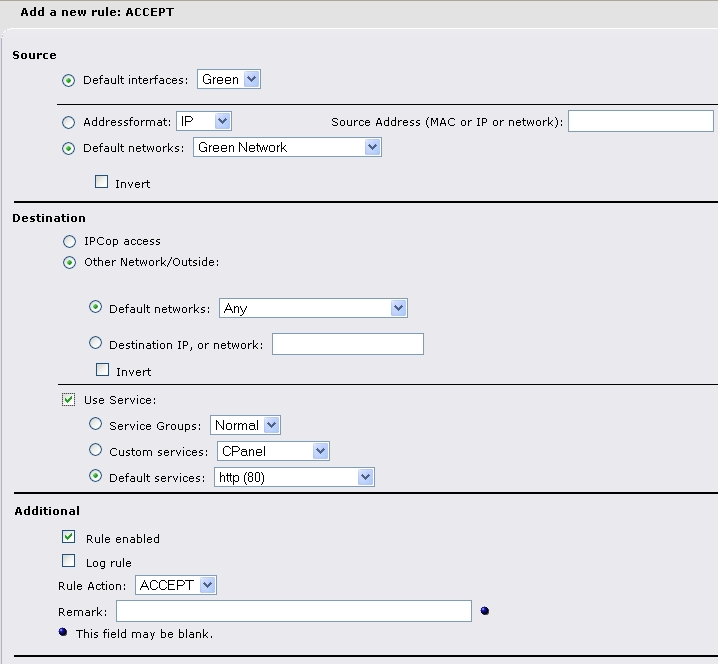
First you have to create a new rule for each normal service, they are HTTP, HTTPS, POP3, and SMTP.  Make sure that you select 'default networks, Green Network' then 'Use Service, Default services', and use the select box to select the service that you are adding, and remember to 'enable' the rule.
once you have your rules enabled then you should see this screen.  Now there are some IPcop access rules that need to be added.  Mainly they are 'domain' and 'NTP'.  It will not work if you add them to the 'Outside' rules as your computers should be getting them from the IPcop server instead of from the outside world.
Last of all you need to add some IPcop rules in the advanced section too.  These allow all computers to log into IPcop not just the one that has their MAC address set up in the initial screen.

Thursday, October 14, 2010

IPCop Revisited once again...

There are ongoing problems with Snort IDS not updating on IPCop.  So I thought I would try out Smoothwall instead.  Smoothwall installed much faster and easier than IPcop.  There were almost no questions that required a lot of technical knowledge.  then menus in Smoothwall are arranged differently and took a little getting used to.  Then the problems started.  I could not even get IDS to turn on in Smoothwall.  I have been watching a virus infected computer trying to ensure that the virus had been completely removed and so having no IDS was simply not an option. 

Also when I enable the email virus filter it blocked ALL of my email as containing a virus.  This was not
acceptable either, so although Smoothwall is much easier to install it is not as usable as IPCop, and will not be
used by me at this point.

Here is a simple diagram on how IP cop is setup up as an Internet server and a firewall.


I thought I would include some IPCop configuration screens so you can see how they should look.  Notice that I do nut use VPN, I do not like to put a hole through my firewall unless the boss absolutely demands it!
  Most of the time you will want DNS to be set up and running.  Sometimes you have a file server that does the DNS thing instead.

 Then there is the Web proxy server.  This is needed in order to log who is accessing what.  It also speeds up the Internet a little by serving some pages from its cache.

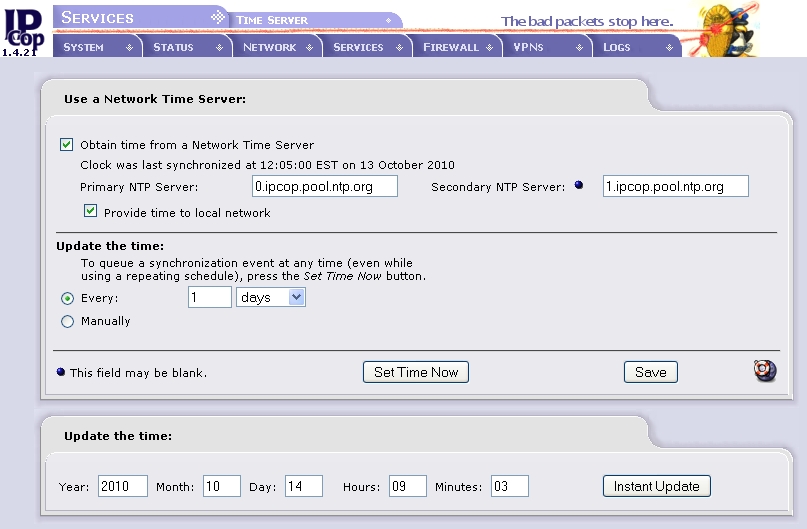
 Next is enabling the time server.  This helps to keep all of your computers synchronized to the same time.


Some say that enabling IDS on Red is just a waste of time because it only tells you that you are under attack, but that is a given being connected to the Internet.  However it has been telling me that someone out there is trying to access the formerly infected computer, so IMO it is very useful! 


I do not know if configuring a static DNS is necessary, and if so what one do you use?

Wednesday, April 21, 2010

Is Linux as safe as they say it is?

Last week I was vacationing on my honeymoon. I was only gone from work for one week. Surely they could survive without me that long? Well maybe not. On Friday I got a call saying that there was no Internet access at work. They still had working email, just no Internet. I told them to switch back to an older Netgear router and then everything started working again.

When I got back from vacation, I checked the now offline IPCop Internet server. It had a screen full of error messages. It was also running URL filter and somehow the update had gone bad and as a result just about every web site was being blocked. I promptly pulled out the IPCop CD and then reinstalled IPCop. Sure enough it worked fine. Then I reinstalled URL filter and again everything worked fine.

The question remains, did something go wrong with the URL filter program, with its updating, or did someone hack the IPCop server? If it was hacking, then that is proof that Linux is hack-able. That’s a scary thought.

Now back to trying to figure out why a 6 month old installation of Windows XP is slower than molasses in January. Perhaps it is infected with something that Kaspersky, and Malware Bytes cannot find?

On the good news side, Firefox has disabled JavaScript! That is something that I said needed to be done a long time ago. In fact I have been running a JavaScript blocking add on program on my computer.

Thursday, February 25, 2010

IPCop with URL Filter

Years ago setting up a Linux firewall was a nightmare. Then after many trials I discovered IPCop. It installs in 10 minutes and it is up and running! Thats almost as easy as using a firewall box that hangs on the wall. There is one catch they do not tell you about. To get it going quickly do not use the network card that is built into the motherboard, and instead use a 3 com network card and an Intel network card. That way you know what card connects to what and you do not have to fight with the drivers to get them to work. The 3 Com card will connect to the internal network via your 24 port switch or hub and the Intel card will connect to the Web via your ISP's router.

Installing IPCop
----------------
Download the ISO file and burn a CD from the ISO Image file.
Boot the 'soon to be' server from the CD you made.
Press "enter" about 5 times.
Select "Skip" to skip floppy configuration.
  (Press 'space bar' to select the item, 'tab' three times, and then 'enter'.)
Select "Probe" to find the first network card. (The 3 Com Card)
Enter an IP address of 192.168.0.1 (The IP of this Firewall)
Select "US" for the keyboard layout.
Select "EST" for Eastern Standard time.
Select "IPCop" for machine name and "workgroup" for a Domain.
  (or your companys domain)
Select "Disable" for the ISDN screen.
For Network Type select "Green and Red".
For Drivers and Cards Select "Probe" and assign the second card to "Red".
For Address Settings Select "Red", and enable "DHCP".
  (Unless you alrady have a DHCP server)
For DHCP Server Configuration - Set the IP Range to 192.168.0.10 to 192.168.0.100 and "OK"
  (This allows devices with 'fixed' IP address from 1 to 10)
Enter your password about 6 times and press "OK" to restart.

If everything went well you are up and running in 10 minutes or less!
Go to a machine on the network and from FireFox type '192.168.0.1:81'
Enter 'admin' and your password 'xxxxxx'

Some other "Services" you may want to modfy are;
Select "Services", "Intrusion Detection", Enable on Red, Enable on Green, Select "Save"
Select "Services", "Proxy Server", Enable on Green, Transparent on Green, Log Enabled, Select "Save"


URL Filter Installation
-----------------------
Download IpCop-UrlFilter, burn to a CD and put into server.
type 'mount /dev/cdrom'
type 'cd /mnt/cdrom'
type 'cp ipcop [tab] /'
type 'cd /'
type 'tar zxvf ipcop [tab]'
type 'cd ipcop [tab]'
type './install'

It runs without creating any new tabs. Look under 'services', 'urlfilter'. You will want to do a blacklist 'update now' then select 'porn' and enable logging. I won't tell you how to test it, suffice it to say play with it boy, and you should get a 'blocked' screen. The log seems to take a while to start working, but it should log every blocked site.